solution
How to Restrict Team Members from Accessing Websites (2026 Step-by-Step Guide)
Learn how to restrict team members from accessing websites when sharing business accounts. Follow this step-by-step guide to configure website restrictions in Nstbrowser and create a safer collaboration workflow.
Jul 22, 2026Carlos Rivera
Sharing business accounts is now a normal part of how modern teams work.
Whether it's Google Ads, Meta Business Manager, Amazon Seller Central, ChatGPT, Claude, or Zendesk, it's common for multiple employees to work under the same account every day. Instead of sharing usernames and passwords, many companies now provide pre-configured browser profiles that already contain the required login session, cookies, browser fingerprint, and proxy settings. Team members simply launch the profile and start working.
While this approach makes collaboration much safer, it also introduces a different challenge.
Once an employee opens a shared browser profile, they often have access to far more than they actually need. They can browse unrelated websites, open account security or billing pages, install browser extensions, or accidentally modify settings that affect everyone else using the same account.
Most of the time, these aren't malicious actions. They're simply the result of having too much access inside a browser that was created for a specific business task.
That's why securing shared accounts isn't only about protecting passwords—it's also about controlling where a shared browser profile is allowed to go.
In this guide, we'll show you how to restrict website access for shared browser profiles in Nstbrowser, helping your team stay focused on approved business websites while reducing unnecessary security risks.
Also Read: How to Share Accounts Without Sharing Passwords (Secure Guide)
Why Restrict Website Access in Shared Browser Profiles?
When employees use their own browser, they have complete control over their browsing experience—and any mistakes they make usually affect only themselves.
A shared browser profile is different.
It's a workspace that multiple people rely on. Every extension that's installed, every setting that's changed, and every unnecessary page that's visited has the potential to affect the entire team.
Imagine a browser profile that's been prepared for a Google Ads account. A media buyer only needs access to campaign management, reports, and conversion tracking. They don't need to visit Google Account recovery settings, review billing information, manage security keys, or browse unrelated websites during the same session.
The same principle applies across many business platforms.
- A customer support agent needs access to Zendesk, not account administration pages.
- A social media manager needs Meta Business Suite, not Meta account security settings.
- An AI team member needs ChatGPT or Claude, not organization billing or API management pages.
- An e-commerce operator needs Amazon Seller Central, not every section of the company's account.
The goal isn't to restrict employees—it's to keep shared browser profiles focused on the work they were created for.
When each browser profile only has access to the websites required for a specific role, teams reduce accidental changes, simplify day-to-day operations, and create a much safer environment for sharing business accounts.
When Should You Restrict Website Access?
Website restrictions aren't designed to monitor employees or limit productivity.
Instead, they help keep shared browser environments focused on a specific workflow.
For example, if you've created a browser profile specifically for Google Ads, employees usually only need access to Google Ads and a handful of related tools like Google Analytics or Looker Studio. They don't need to browse unrelated websites, install browser extensions, or access Google Account recovery settings.
The same idea applies across many different industries.
- Advertising teams only need platforms like Google Ads, Meta Ads Manager, or TikTok Ads.
- Customer support teams typically work inside Zendesk, Intercom, or Freshdesk.
- E-commerce operators spend most of their day in Amazon Seller Central, Shopify, or logistics platforms.
- AI teams often only need ChatGPT, Claude, or other approved AI tools.
- Freelancers or temporary contractors may only require access to a single client platform for the duration of a project.
By limiting browser access to approved websites, administrators reduce unnecessary distractions while protecting shared accounts from accidental changes or unauthorized activity.
How to Restrict Team Members from Accessing Websites-Nstbrowser Way
Before You Start
Before configuring website restrictions, make sure you've already completed the following setup:
- Registered and activated your Nstbrowser account.
- Installed and logged into the Dashboard.
- Created a Team Workspace.
- Have administrator permission to manage browser profiles and security policies.
If you're already sharing browser profiles with your team, you're ready to continue.
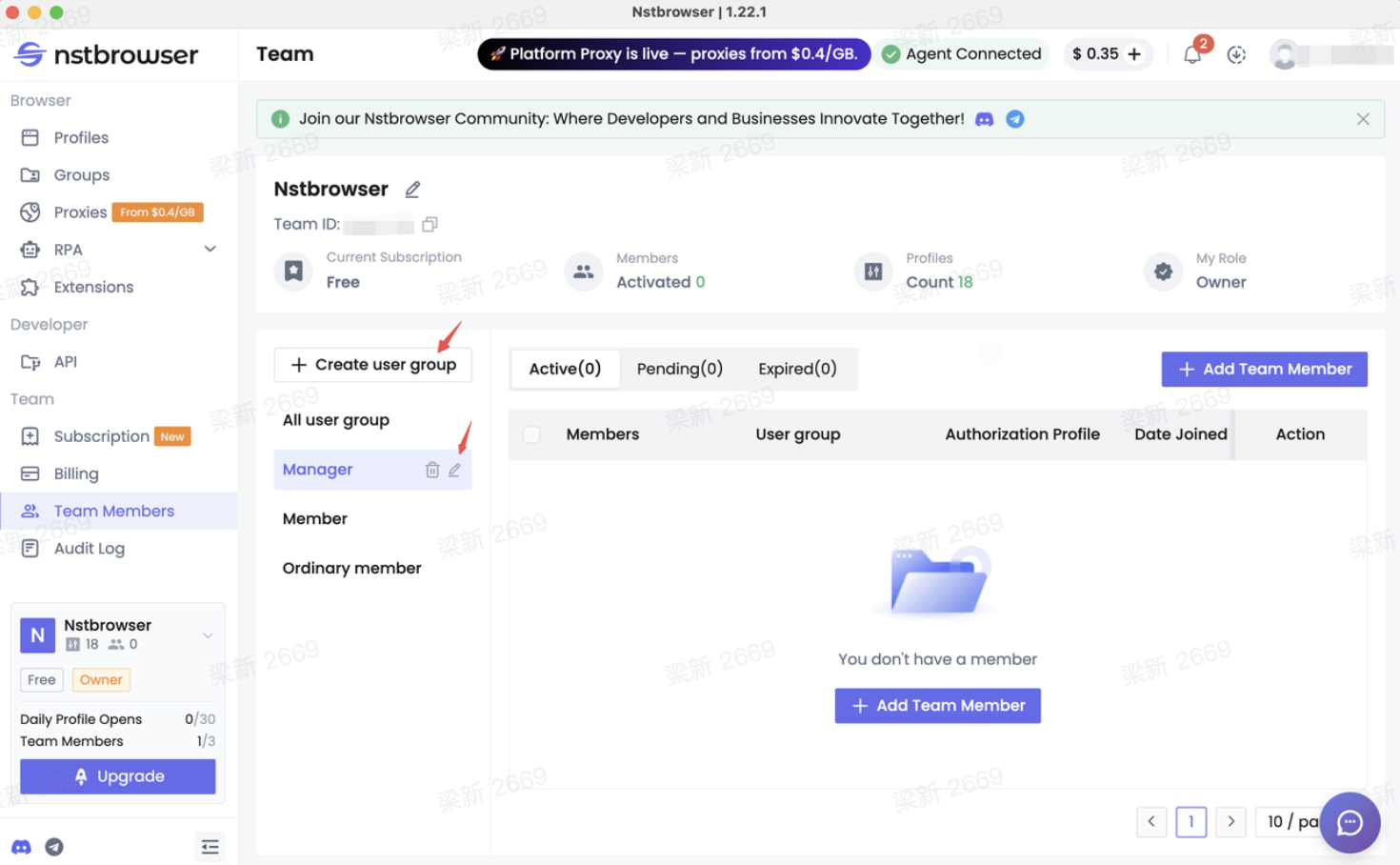
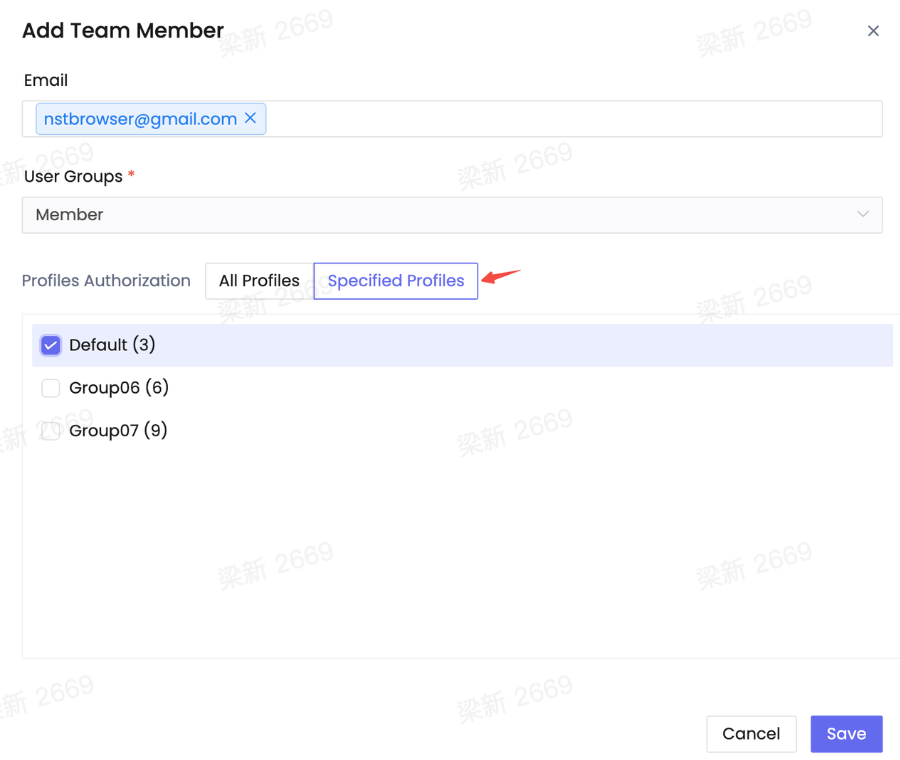
Step 1: Invite Team Members and Configure User Group Permissions
Once you have created a team, invite the team members into the shared wokrplace.
Then you need to assign each users profile permisions. For example:
- Member: Allowed only to launch and use assigned Profiles
- Manager: Can manage selected Profiles and team members
- Temporary Member: Limited access to a small number of designated environments
Note: Cookie management permissions can also be restricted so users cannot export authenticated sessions.
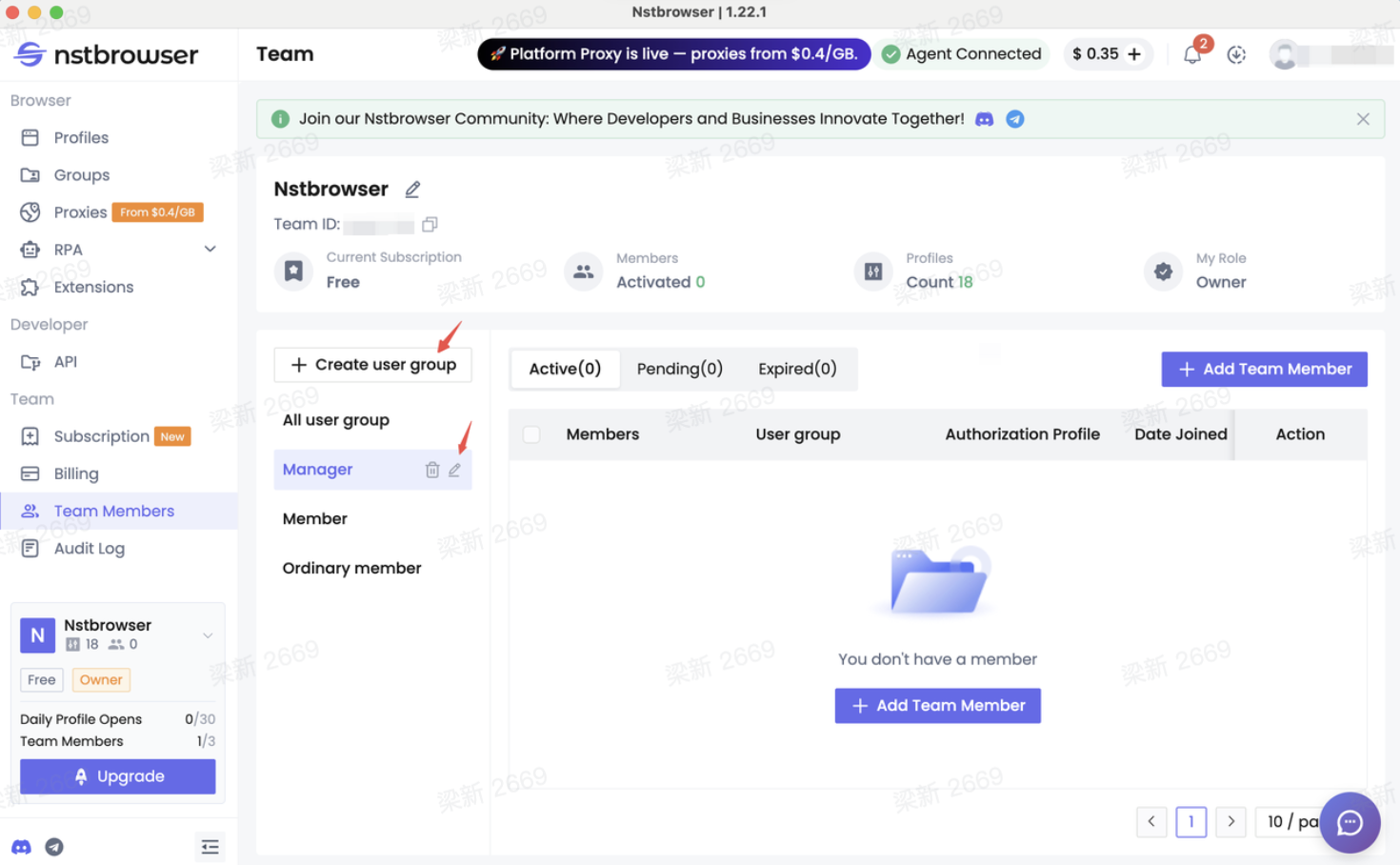
Step 2: Organize Profiles into Profile Groups
Once your browser profiles have been created, organize similar profiles into a Profile Group.
Although this step isn't mandatory, it's highly recommended for larger teams because security policies can be applied to an entire group instead of configuring every profile individually.
For example, you might create groups such as:
- Advertising Accounts
- Social Media Accounts
- AI Tools
- E-commerce Accounts
- Customer Support Accounts
Later, any security policy you apply to the group will automatically protect every profile inside it.
This saves a significant amount of administration time as your business grows.
Step 3: Create or Select a Browser Profile
In Nstbrowser, every shared account should ideally have its own dedicated browser profile. Instead of using one browser for everything, separate profiles keep browser fingerprints, cookies, proxies, extensions, and login sessions isolated from one another.
For example, your team might create profiles like:
- Google Ads
- Facebook Business Manager
- Amazon Seller Central
- ChatGPT
- Claude
This makes permissions much easier to manage and reduces the risk of employees accidentally using the wrong account.
Step 4: Open Browser Security Settings
After selecting the appropriate Profile Group, navigate to its browser security settings.
This is where administrators can configure browser behavior for every shared profile in that group.
Instead of depending on employees to remember company policies, these settings allow the browser itself to enforce them automatically.
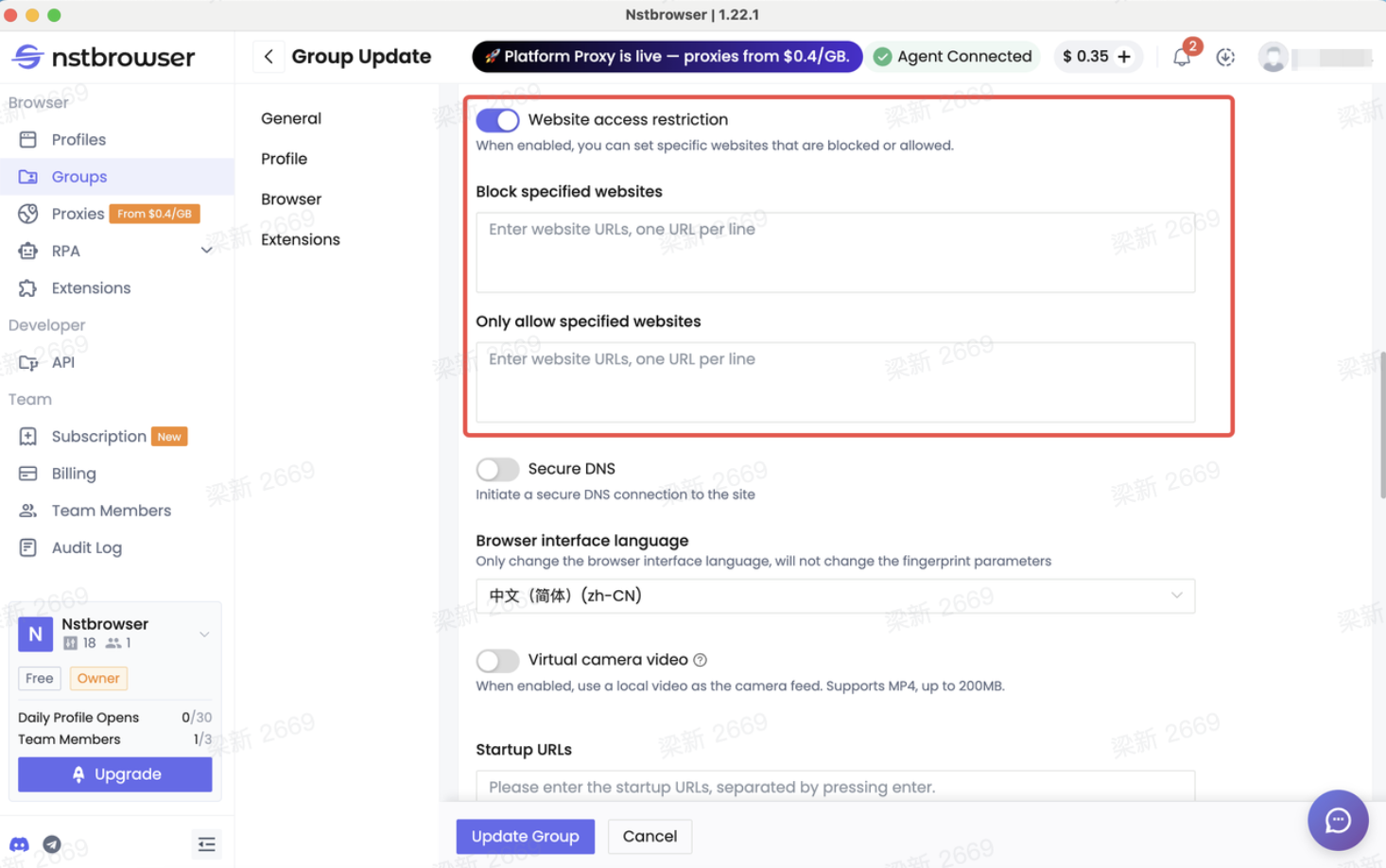
Among the available security options is Website Access Restriction, which controls which websites team members are allowed—or not allowed—to visit while using a shared browser profile.
Step 4: Configure Website Restrictions
Nstbrowser provides flexible website access controls that can be adapted to different business workflows.
Depending on your requirements, you can create two different types of rules.
Allow Only Approved Websites
If you want employees to work exclusively inside approved business platforms, create an allow list.
For example, an advertising team may only need access to:
- Google Ads
- Google Analytics
- Looker Studio
Everything else can remain inaccessible.
This approach works particularly well for teams managing valuable advertising accounts or handling sensitive customer data because it minimizes unnecessary browsing.
Block Specific Websites
Sometimes employees need general internet access but should avoid certain destinations.
In this case, you can create a block list.
For example, you may want to prevent access to:
- Account security pages
- Password management pages
- Chrome Web Store
- Internal administration portals
- Other websites unrelated to the project
If both allow and block rules exist, block rules take priority, giving administrators greater control over browser behavior.
Combine Website Restrictions with Other Security Controls
Website restrictions become even more effective when they're combined with other browser security features.
For example, many organizations also choose to:
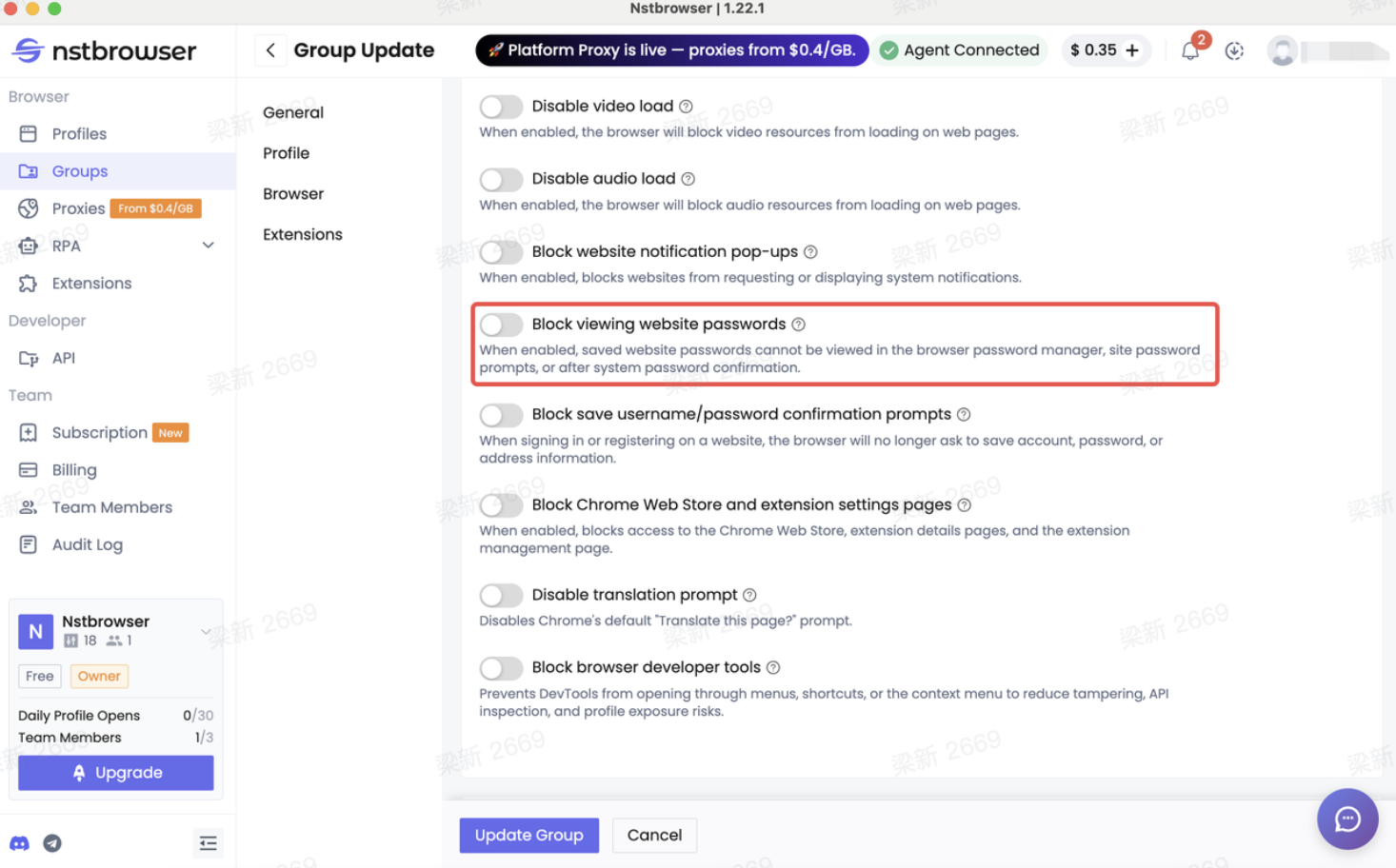
- Hide saved website passwords so employees can use accounts without viewing the actual credentials.
- Disable browser prompts that ask users to save usernames and passwords locally.
- Restrict cookie permissions to prevent authenticated sessions from being exported.
- Hide browser extensions and block access to the Chrome Web Store.
- Disable Developer Tools and restrict CDP automation for high-value business accounts.
- Enable audit logs to record important browser and team activities.
Each of these controls protects a different part of the shared browser environment. Together, they create a workflow where employees can complete their work normally while administrators retain control over sensitive account assets.
Best Practices
If you're planning to use website restrictions for shared accounts, these practices can help you build a cleaner and more scalable workflow.
- Create separate browser profiles for different business accounts instead of using one browser for everything.
- Organize related profiles into Profile Groups so security policies can be managed centrally.
- Only allow access to websites employees actually need for their role.
- Combine website restrictions with role-based permissions rather than relying on passwords alone.
- Regularly review browser security policies as team responsibilities evolve.
- Test new policies before assigning them to the entire team.
The goal isn't to make browsing more restrictive—it's to make shared accounts easier to manage while reducing unnecessary risks.
Frequently Asked Questions
Q1. Why should I restrict websites when sharing business accounts?
Because employees usually need access to only a small number of websites. Restricting unnecessary websites helps reduce accidental changes, protects sensitive account settings, and keeps browser profiles focused on work.
Can different teams have different website restrictions?
Yes. Different Profile Groups can have completely different website access policies. For example, your advertising team, AI team, and customer support team can each have their own browser environment and security rules.
Will website restrictions affect daily work?
Not if they're configured correctly. Employees continue accessing the platforms they need while unnecessary or high-risk websites remain unavailable.
Can website restrictions be combined with other browser security features?
Absolutely. Website restrictions work best alongside role-based permissions, password protection, cookie management, extension controls, Developer Tools restrictions, and audit logs.
Conclusion
Restricting website access isn't about limiting your team's freedom—it's about protecting shared business accounts.
When multiple employees collaborate inside the same browser profile, every unnecessary website becomes another potential source of risk. By limiting browser access to approved destinations, organizations can create a cleaner, safer, and more consistent working environment without making collaboration more difficult.
With Nstbrowser, administrators can apply website restrictions alongside browser profiles, user group permissions, browser security policies, and audit logs to build a complete account-sharing workflow. Instead of relying solely on trust, teams gain a practical way to protect shared accounts while allowing employees to stay productive from day one.
More