solution
Fingerprint Browser with Built-In CAPTCHA Solver | Nstbrowser
Use Nstbrowser's built-in CAPTCHA solver for reCAPTCHA, Turnstile, AWS and text CAPTCHAs. Learn Profile/Group setup, plugin states, and usage pricing.
Oct 20, 2026Carlos Rivera
TL;DR
- Nstbrowser is a fingerprint browser with a built-in CAPTCHA solver that automatically handles supported verification challenges in launched browser environments.
- Supported configuration types are reCAPTCHA v2, reCAPTCHA v3, Text CAPTCHA, AWS CAPTCHA, and Cloudflare Turnstile. The reCAPTCHA options also cover their Enterprise variants, which have separate usage rates.
- Use Group settings for a shared CAPTCHA policy, or choose a custom Profile configuration for an individual environment. Profile customization takes precedence over inherited Group settings.
- Restart the affected browser environment after saving a Profile or Group configuration change.
- The plugin’s
Appliedstatus means that a result has been applied to the page. The target website still determines whether verification succeeds. - CAPTCHA usage is charged when the solving service successfully returns a result. Charges use the Profile’s team Credits and are separate from subscription fees.
What Is Nstbrowser CAPTCHA Solver?
Nstbrowser CAPTCHA Solver adds automatic CAPTCHA handling to the browser environments you already manage in Nstbrowser. You enable the feature, select supported CAPTCHA types, and start the environment. When the browser encounters an enabled type, the built-in solver processes the challenge and reports its status.
For teams already using the Nstbrowser fingerprint browser, this brings CAPTCHA configuration into the same Profile and Group workflow. You can maintain one policy across a group of environments while giving individual Profiles different settings when needed.
The practical value is fewer manual verification steps during permitted data collection, browser automation, and account workflows. A shared Group policy also gives teams a common place to adjust which CAPTCHA types they want to process. Use these capabilities on websites and workflows where you have permission to automate.
Browser configuration and CAPTCHA solving address different parts of a workflow. A successful solve does not guarantee that a website will accept a form submission, grant access, or complete the task you intended.
Which CAPTCHA types does Nstbrowser support?
Nstbrowser supports five CAPTCHA configuration types, with separate billing items for the Enterprise variants of reCAPTCHA v2 and v3.
| Configuration type | Supported scope | Configuration and billing detail |
|---|---|---|
| reCAPTCHA v2 | Standard and Enterprise | One v2 configuration option; the detected variant determines the rate |
| reCAPTCHA v3 | Standard and Enterprise | One v3 configuration option; the detected variant determines the rate |
| Text CAPTCHA | Image-to-text recognition | Enable Text CAPTCHA for supported text-image challenges |
| AWS CAPTCHA | Supported AWS CAPTCHA image challenges | Enable AWS CAPTCHA for this challenge category |
| Cloudflare Turnstile | Turnstile widgets | Enable Cloudflare Turnstile for supported widgets |
Nstbrowser detects standard and Enterprise reCAPTCHA variants automatically, according to the CAPTCHA Solver support documentation. You do not need a separate Enterprise toggle.
The distinction between CAPTCHA products matters. Google describes reCAPTCHA v3 as a score-based system, so it does not always present an image puzzle. AWS distinguishes CAPTCHA puzzles from silent Challenge actions. Nstbrowser’s AWS CAPTCHA support should not be read as support for every AWS WAF control.
Cloudflare Turnstile support concerns Turnstile widgets. Cloudflare requires server-side validation of Turnstile tokens, which helps explain why applying a result in the browser does not establish that a website has accepted it.
Choose Group settings or a custom Profile configuration
Group settings provide a shared CAPTCHA policy, while a custom Profile configuration gives one browser environment its own policy.
| Configuration approach | When to use it | How it takes effect |
|---|---|---|
| Group settings | Several Profiles need the same enabled types | Set each relevant Profile to follow its Group settings |
| Custom Profile settings | One Profile needs a different selection | The Profile’s custom settings override its inherited Group policy |
A Profile following Group settings uses the Group’s latest saved configuration when the browser environment is restarted. A Profile configured with custom settings continues to use its own policy.
How to enable Nstbrowser CAPTCHA Solver
Enable CAPTCHA processing in the Dashboard, save the desired configuration, and start or restart the affected environment before visiting a page with a supported challenge.
Before configuring the feature, confirm that:
- You are working in the correct Nstbrowser team and have permission to change the relevant Profile or Group settings.
- CAPTCHA Solver is available under the team’s current subscription.
- The team that owns the Profile has enough Credits for CAPTCHA usage.
- The Nstbrowser Agent is connected before you launch the environment.
The menu names below are English translations of the Dashboard labels; match them to the corresponding entries in your selected interface language.
1. Check the team and available Credits
Select the team that owns the Profile, then open Billing → Current Period to review its available Credits. CAPTCHA fees are deducted from that team’s balance. An insufficient balance causes CAPTCHA requests to fail.
Check the owning team carefully if you work across several teams. Adding Credits to another team does not replenish the balance used by this Profile.
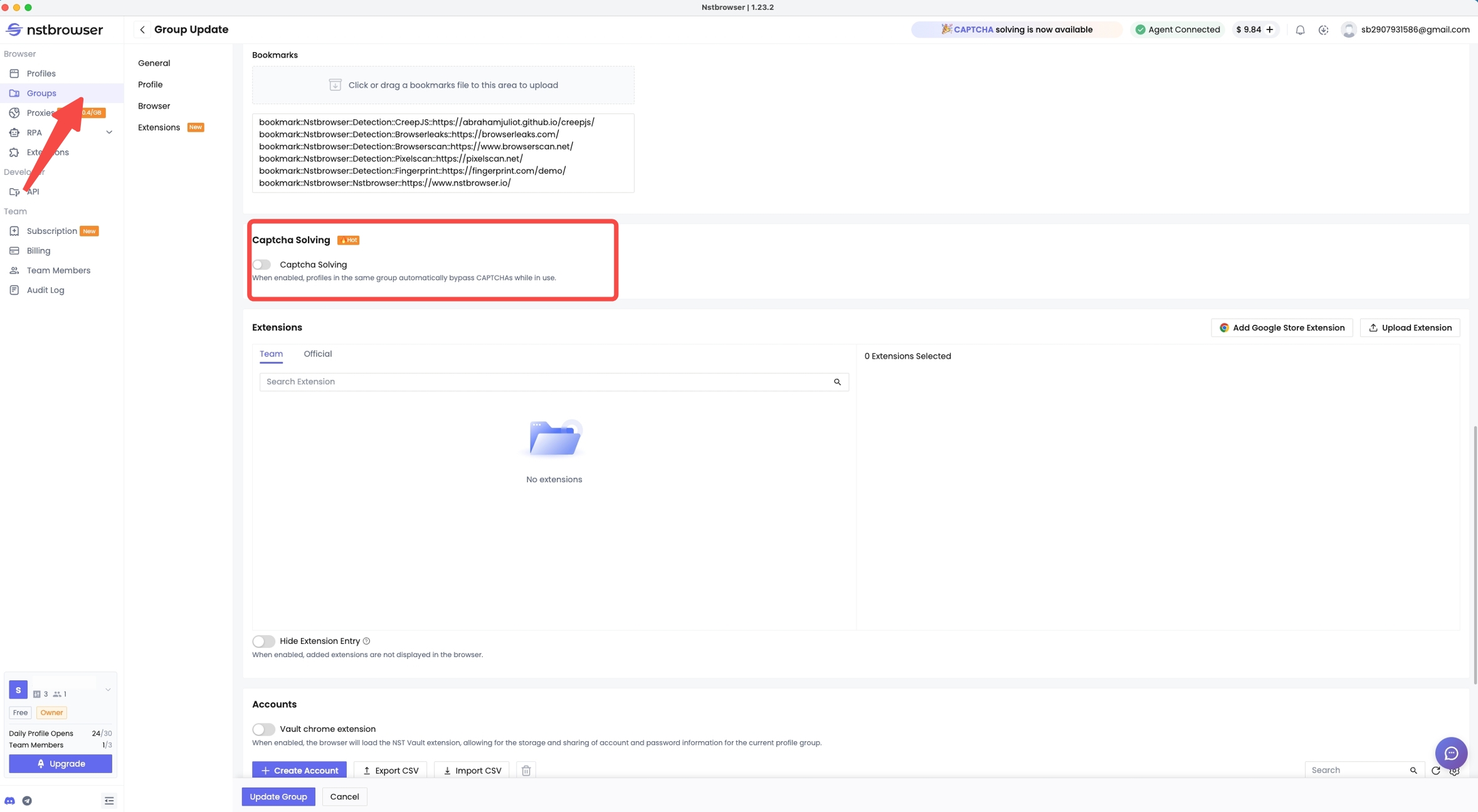
2. Configure a shared Group policy
Use Group configuration when multiple environments should process the same CAPTCHA types:
- Open Groups, then create a Group or edit the Group you want to use.
- Enable CAPTCHA solving and select the required types.
- Save the Group settings.
-
Create or edit a Profile and assign it to that Group.
-
Under Advanced → CAPTCHA, select Follow Group settings, then save the Profile.
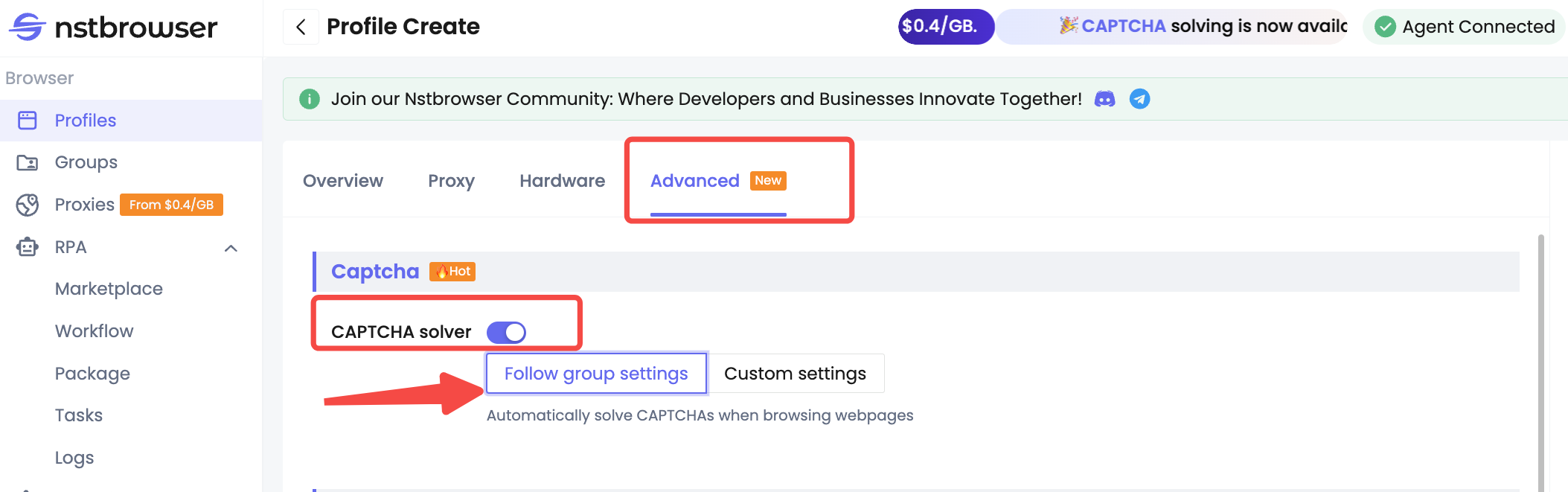
The CAPTCHA type selection defaults to all types. Adjust the selection to fit the challenges your workflow actually needs.
3. Configure an individual Profile when needed
Use custom configuration when a Profile needs an independent policy:
- Open Profiles and create or edit the target environment.
- Go to Advanced → CAPTCHA and enable CAPTCHA solver.
- Select Custom configuration.
- Choose the CAPTCHA types required for that Profile.
- Save using the create or update action.
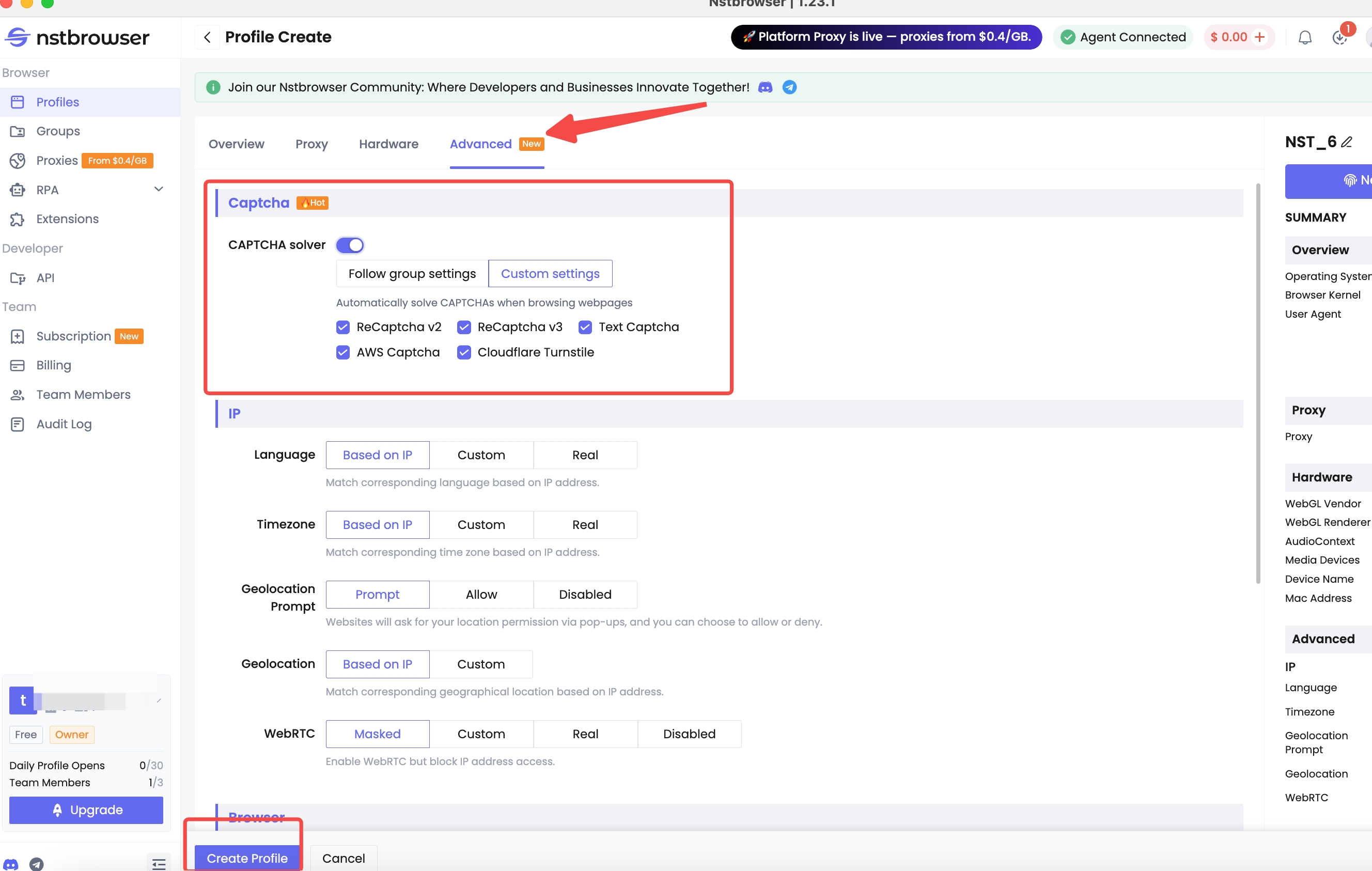
For example, a Profile used only with a supported Text CAPTCHA workflow can enable that type independently of a Group that uses several types. This changes the Profile’s configuration, not the Group policy followed by other Profiles.
4. Start or restart the environment
Confirm that the Agent is connected, select the Profile in the environment list, and start it. If the browser environment is already running, stop it and start it again after saving your changes.
Saving a new setting does not update a running browser environment. If this is your first launch with a particular browser kernel, complete the download when prompted.
5. Open the built-in plugin and visit the page
Open the browser’s extensions menu and select the Nstbrowser plugin. If the plugin is pinned to the toolbar, open it directly from its icon.
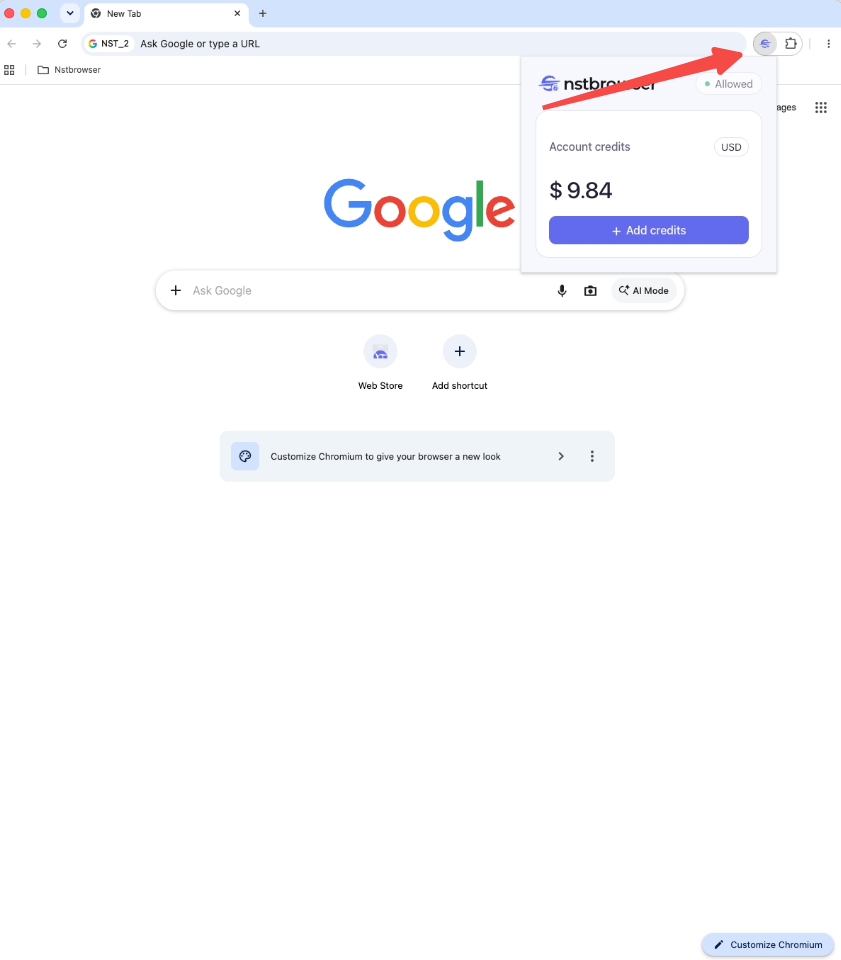
Review the displayed status and Account credits, then visit the permitted target page. When the browser encounters a supported, enabled CAPTCHA type, wait for automatic processing. Avoid repeatedly refreshing the page while the plugin reports Solving.
Understand the CAPTCHA plugin status
The Nstbrowser plugin displays read-only information about CAPTCHA processing and the Profile’s team balance.
| Plugin status | Meaning | What to do |
|---|---|---|
Checking |
The plugin is checking its connection to Nstbrowser | Wait for the connection check to finish |
Allowed |
CAPTCHA processing is permitted and waiting for a supported challenge | Continue with the intended page workflow |
Solving |
The solver is processing a challenge | Wait for completion and avoid repeated refreshes |
Applied |
The solver result has been applied to the webpage | Continue the website’s own submission or verification process |
Disabled |
CAPTCHA processing is disabled for the current Profile | Check the Profile’s configuration source and enable the feature in the Dashboard |
Use the Dashboard to change the switch or selected CAPTCHA types. The plugin status itself is not a configuration control. Save the Profile or Group change and restart the environment afterward.
Treat Applied as one stage in the workflow. For example, a form may still need to be submitted, and the website may perform additional validation before displaying the next page or completing an action.
How CAPTCHA usage is billed
Nstbrowser charges for CAPTCHA tasks when the solving service successfully returns a result, and deducts Credits in real time from the team that owns the Profile.
The CAPTCHA billing documentation makes the charge boundary explicit: a task that fails before returning a result is not charged, while a later website rejection does not reverse a charge for a returned result. Starting a browser alone does not create a CAPTCHA charge.
Retries have no separate retry surcharge. A retry that successfully returns a result is charged under the applicable usage rate.
CAPTCHA usage rates
The following rates are in USD per 1,000 successful solver returns, as of October 19, 2026. The unit is used to display the price; you do not have to purchase usage in blocks of 1,000.
| CAPTCHA billing item | Free | Standard Starter | Standard Growth | Standard Scale | Developer Basic | Developer Scale |
|---|---|---|---|---|---|---|
| reCAPTCHA v2 | $1.60 | $1.40 | $1.20 | $1.00 | $1.20 | $1.00 |
| reCAPTCHA v2 Enterprise | $1.80 | $1.60 | $1.40 | $1.20 | $1.40 | $1.20 |
| reCAPTCHA v3 | $1.80 | $1.60 | $1.40 | $1.20 | $1.40 | $1.20 |
| reCAPTCHA v3 Enterprise | $3.80 | $3.60 | $3.40 | $3.20 | $3.40 | $3.20 |
| Text CAPTCHA | $1.20 | $1.00 | $0.80 | $0.60 | $0.80 | $0.60 |
| AWS CAPTCHA | $2.80 | $2.60 | $2.40 | $2.20 | $2.40 | $2.20 |
| Cloudflare Turnstile | $2.00 | $1.80 | $1.60 | $1.40 | $1.60 | $1.40 |
Review the current Nstbrowser pricing and the subscription page in your Dashboard before estimating costs for your plan.
Calculate each CAPTCHA type separately:
Cost = successful solver returns ÷ 1,000 × the applicable plan rate.
For example, 10,000 successful reCAPTCHA v2 returns on Standard Starter cost 10,000 ÷ 1,000 × 1.40 = 14.00 in CAPTCHA usage fees. Subscription charges and other service usage are separate.
One Credit equals one US dollar. Credits fund CAPTCHA usage, but cannot be used to pay for the subscription itself. The Free plan’s name also does not make CAPTCHA solving free; its usage rates appear in the table above.
Review usage and add Credits
Open Billing → Usage Analysis, select a date range, and choose CAPTCHA under overage usage to review the resource type, unit price, used count, and amount.
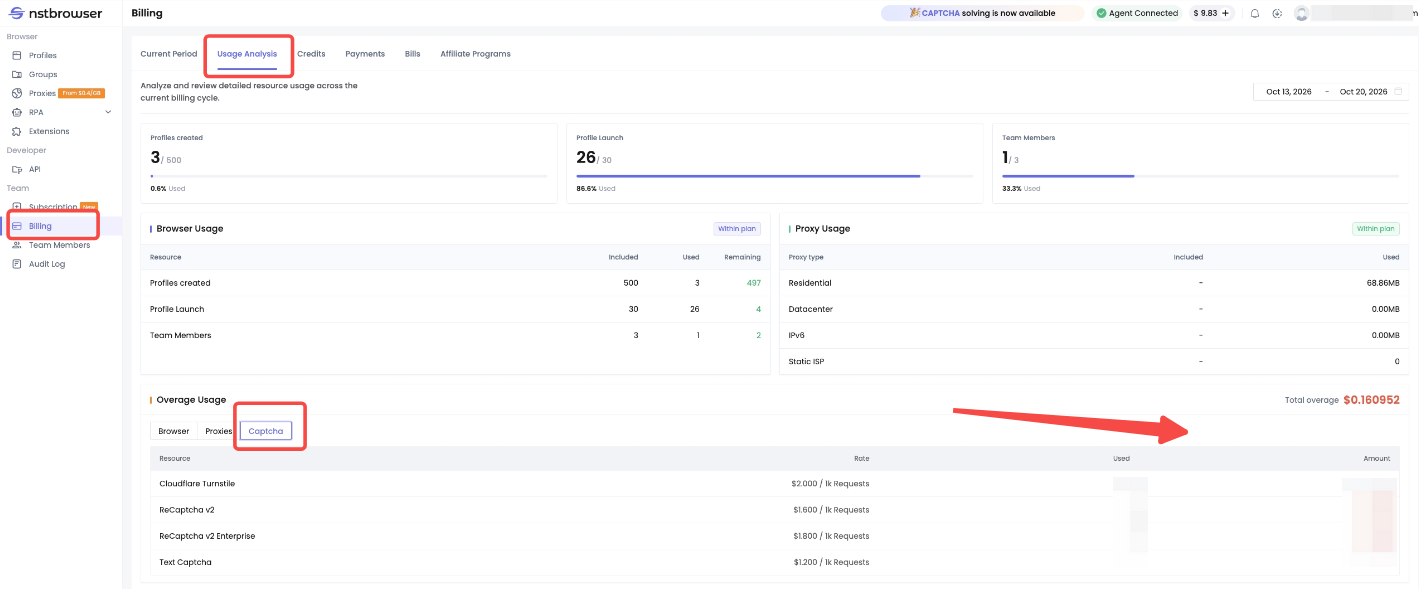
Open Billing → Credits to check charge and top-up transactions. To add funds, use Add credits under Billing → Current Period, or select Add credits in the plugin. Confirm the team and amount before completing the payment, then check that the Credits have arrived.
Troubleshoot configuration and verification issues
Check the configuration source, environment restart, supported type, and owning team’s balance when CAPTCHA processing does not behave as expected.
| What you observe | What to check |
|---|---|
| Group changes are not reflected in one Profile | Confirm that the Profile follows Group settings rather than a custom configuration; restart the environment |
| Saved changes do not affect an open browser | Stop the environment and start it again |
The plugin reports Disabled |
Enable CAPTCHA processing in the relevant Profile or Group configuration and restart |
| A particular CAPTCHA is not processed | Confirm that its supported type is selected in the active configuration |
| A request fails because Credits are insufficient | Add Credits to the team that owns the Profile |
The plugin reports Applied, but the task has not finished |
Continue the site’s submission flow and check the website’s actual result |
If a challenge is outside the documented support list or the service remains unavailable, use the website’s native verification process or contact support. Support for a CAPTCHA category does not promise compatibility with every implementation, a fixed solving time, or a guaranteed website acceptance rate.
Try Nstbrowser CAPTCHA Solver with one Profile
Start with one Profile and a supported CAPTCHA type before applying a shared policy to more environments. Confirm the configuration source, restart the browser, observe the plugin status, and review the resulting usage in Billing.
This gives you a practical way to assess the feature within your own authorized workflow and plan rates. Use the button below to access Nstbrowser; CAPTCHA processing remains subject to the separate usage charges described above.
FAQ
Q: What is a fingerprint browser with a built-in CAPTCHA solver?
A fingerprint browser with a built-in CAPTCHA solver combines configurable browser environments with automatic handling of supported CAPTCHA challenges. In Nstbrowser, the solver is configured through Profile or Group settings and uses the Profile’s team Credits for billing.
Q: Which CAPTCHA types does Nstbrowser CAPTCHA Solver support?
Nstbrowser CAPTCHA Solver supports reCAPTCHA v2, reCAPTCHA v3, Text CAPTCHA, supported AWS CAPTCHA image challenges, and Cloudflare Turnstile widgets. The reCAPTCHA v2 and v3 configuration options include their Enterprise variants, which are billed separately.
Q: Do I need a separate setting for reCAPTCHA Enterprise?
No. Standard and Enterprise variants are detected automatically within the relevant reCAPTCHA v2 or v3 option. The detected variant determines which usage rate applies.
Q: Should I configure CAPTCHA processing in a Profile or a Group?
Use Group settings when several Profiles should share a policy, and custom Profile settings when one environment needs a different selection. A custom Profile configuration takes precedence over inherited Group settings.
Q: Do I need to restart the browser after changing CAPTCHA settings?
Yes. Stop and restart the affected browser environment after saving changes to its Profile or Group CAPTCHA configuration. Saving a change does not update an environment that is already running.
Q: Does Applied mean that the website accepted the CAPTCHA?
No. Applied means the solver result has been applied to the webpage. The website still decides whether verification passes, including during a later form submission or action.
Q: Is CAPTCHA solving free on the Free plan?
CAPTCHA solving is billed by usage on the Free plan. A successful solver return incurs the rate for that CAPTCHA type; account access and subscription pricing should be considered separately from solver usage fees.
Q: Am I charged if the website rejects a returned result?
Yes. A successful solver return is billable even if the website later rejects the result. A task that fails before returning a result is not charged, and a retry that returns a result is charged at the applicable rate.
Q: Why can a CAPTCHA request fail when another team has Credits?
A CAPTCHA request uses the balance of the team that owns the Profile. Credits held by another team do not fund that Profile’s request; check and replenish the owning team’s balance.
More