solution
How to Manage Team Credentials Without Compromising Security
Learn how to manage team credentials without compromising security. Discover best practices for protecting passwords, browser profiles, cookies, and shared business accounts while enabling secure team collaboration.
Jul 22, 2026Carlos Rivera
As teams become more distributed, managing credentials has become much more complicated than simply sharing a password.
Marketing teams collaborate in Google Ads. Customer support agents work inside Zendesk. Designers share Canva workspaces. AI teams use ChatGPT and Claude. E-commerce businesses manage Amazon Seller Central, Shopify, and multiple social media platforms every day.
Behind each of these platforms are credentials that allow employees to access business resources.
For many organizations, those credentials are no longer limited to usernames and passwords. They also include browser profiles, login sessions, cookies, browser extensions, proxy configurations, API tokens, and the permissions that determine who can access them.
The challenge isn't simply keeping these credentials secret—it's making sure employees have the access they need without exposing sensitive information or creating unnecessary security risks.
If passwords are copied between chat tools, browser cookies are exported, or every employee has unrestricted access to account settings, even a well-protected account can become vulnerable.
Modern credential management is no longer just about storing passwords securely. It's about controlling how credentials are shared, used, and protected throughout your organization.
In this guide, we'll explore practical ways to manage team credentials securely while keeping collaboration simple and efficient.
What Are Team Credentials?
When people hear the word credentials, they usually think about usernames and passwords.
In reality, modern businesses rely on many different types of credentials to access shared systems.
These may include:
- Usernames and passwords
- Browser profiles
- Login sessions
- Authentication cookies
- Proxy configurations
- Browser extensions
- API tokens
- Team roles and permissions
Each of these assets grants access to business resources in a different way.
For example, if your marketing team uses a shared Google Ads browser profile, employees may never know the account password. Instead, they access the account through an authenticated browser session that's already configured with the correct cookies, browser fingerprint, and proxy settings.
From a security perspective, that browser profile becomes just as valuable as the password itself.
That's why effective credential management means protecting every component involved in account access—not just the password.
Common Mistakes Teams Make When Managing Credentials
Many security problems don't happen because hackers break into an account. They happen because internal credential management gradually becomes difficult to control as teams grow.
Here are some of the most common mistakes organizations make.
1. Sharing passwords through chat or email
Sending passwords through Slack, Teams, WhatsApp, or email may seem convenient, but it quickly creates multiple uncontrolled copies of sensitive credentials.
Once a password has been shared several times, it's almost impossible to know who still has access.
2. Giving everyone administrator-level access
Not every employee needs full control over a business account.
When everyone has permission to modify account settings, billing information, or security configurations, the risk of accidental mistakes increases significantly.
3. Allowing unrestricted browser access
Many teams share browser profiles instead of passwords, but still allow employees to browse anywhere once the profile is opened.
Someone may accidentally visit account recovery pages, install browser extensions, or access websites completely unrelated to their work.
Over time, these unnecessary actions create avoidable security risks.
4. Losing visibility into team activity
Without activity records, it's difficult to answer questions like:
- Who accessed this browser profile?
- Who changed the proxy?
- Who modified browser settings?
- When was this shared account last used?
A lack of visibility makes troubleshooting and security investigations much more difficult.
Best Practices for Managing Team Credentials Securely
Managing credentials doesn't have to make collaboration more complicated.
Instead, the goal is to provide employees with exactly the access they need while protecting the assets that keep business accounts secure.
1. Stop Sharing Passwords Directly
Whenever possible, avoid distributing passwords manually.
Instead of sending credentials through chat messages or spreadsheets, use secure methods that allow employees to work without ever seeing the underlying password.
This immediately reduces the number of password copies circulating inside your organization.
2. Give Access Instead of Credentials
One of the biggest shifts in modern collaboration is moving from password sharing to access sharing.
Rather than providing every employee with account credentials, administrators can provide access to a shared browser profile that's already authenticated.
Employees can complete their daily work without managing passwords themselves, while administrators retain control over the underlying account.
This approach is often simpler, safer, and easier to manage as teams grow.
3.Use Role-Based Permissions
Different people need different levels of access.
For example:
- Operators only need access to complete daily tasks.
- Team leaders may manage browser profiles and members.
- Administrators configure security policies and workspace settings.
Role-based permissions reduce unnecessary access while making responsibilities much clearer across the organization.
4.Restrict Browser Access
Once employees have access to a shared browser profile, they shouldn't necessarily have access to every website.
Restricting browser access helps ensure that browser profiles remain focused on the work they were created for.
For example, a profile used for Google Ads can be limited to advertising tools while preventing access to unrelated websites, account security pages, or browser configuration areas.
This reduces accidental changes without interrupting normal work.
5. Protect Browser Assets
Passwords aren't the only assets worth protecting.
Organizations should also consider protecting:
- Saved passwords
- Browser cookies
- Login sessions
- Browser extensions
- Developer Tools
- Automation interfaces
Together, these assets determine how a browser authenticates with business platforms. Protecting them helps reduce the risk of credential leakage or unauthorized browser modifications.
6. Monitor Credential Usage
Good security also requires visibility.
Administrators should be able to review important events, such as:
- Profile access
- Permission changes
- Proxy updates
- Browser configuration changes
- Administrative actions
Activity records make it much easier to investigate issues and maintain accountability across larger teams.
How Nstbrowser Helps Secure Team Credentials
Nstbrowser is designed to help organizations manage shared browser credentials securely without making collaboration more complicated.
Instead of relying solely on password managers, it provides browser-level security controls that protect the environment where credentials are actually used.
Key capabilities include:
- Secure Browser Profile Sharing — Share authenticated browser profiles instead of exposing account passwords.
- Prevent Viewing Saved Passwords — Employees can use logged-in websites without revealing stored credentials.
- Disable Password Saving — Prevent browsers from prompting users to save usernames and passwords locally.
- Website Access Restrictions — Allow only approved websites, block specific websites, or prevent access to sensitive account settings.
- Hide Browser Extensions — Keep required extensions running while preventing employees from inspecting or managing them.
- Block Chrome Web Store — Stop users from installing unapproved browser extensions.
- Disable Developer Tools — Prevent inspection of cookies, browser storage, and network requests.
- Restrict CDP Automation — Limit unauthorized browser automation through Chrome DevTools Protocol.
- Role-Based Team Permissions — Control who can access browser profiles and administrative features.
- Audit Logs — Record important activities for better visibility and accountability.
Together, these controls help organizations build multiple layers of protection around shared browser environments instead of relying on passwords alone.
How to Secure Team Credentials with Nstbrowser
Nstbrowser helps organizations protect team credentials by combining browser profiles, role-based permissions, and browser security policies into a single workspace.
Instead of sharing passwords directly, administrators can provide employees with secure access to pre-configured browser profiles while controlling what they can see and do inside the browser.
Follow these steps to build a more secure credential management workflow.
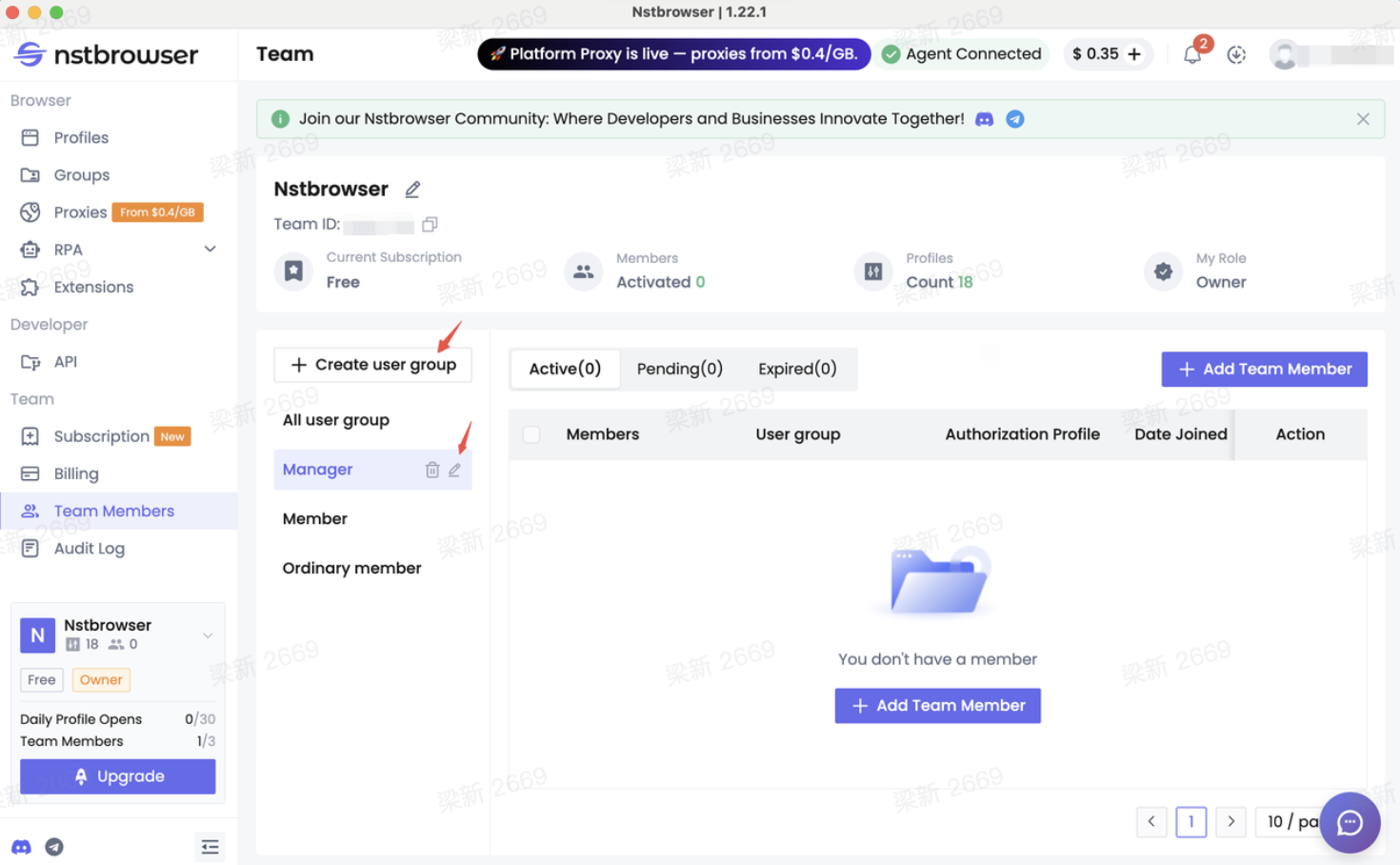
Step 1: Create a Team Workspace
Start by creating a Team Workspace and inviting your employees.
A shared workspace allows administrators to manage browser profiles, assign permissions, and apply security policies from one place instead of configuring each employee's browser individually.
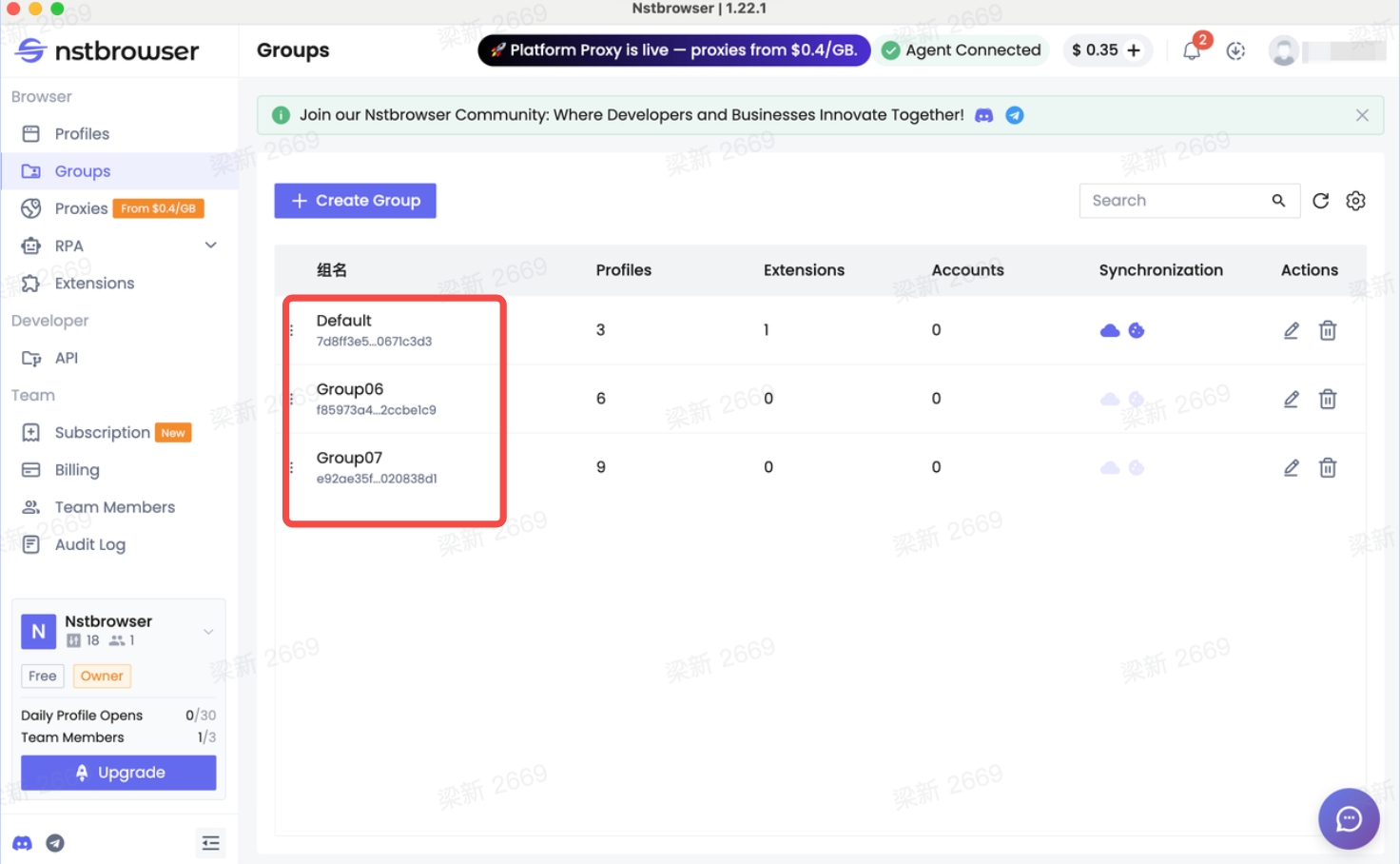
Step 2: Create a Browser Profile
Create a browser profile for the business account you want your team to use.
For example, you can create dedicated profiles for:
- Google Ads
- Meta Business Manager
- Amazon Seller Central
- ChatGPT
- Claude
- Shopify
Each browser profile stores the browser fingerprint, cookies, proxy configuration, extensions, and authenticated login session required for that account.
Instead of distributing passwords, employees simply launch the assigned browser profile and start working.
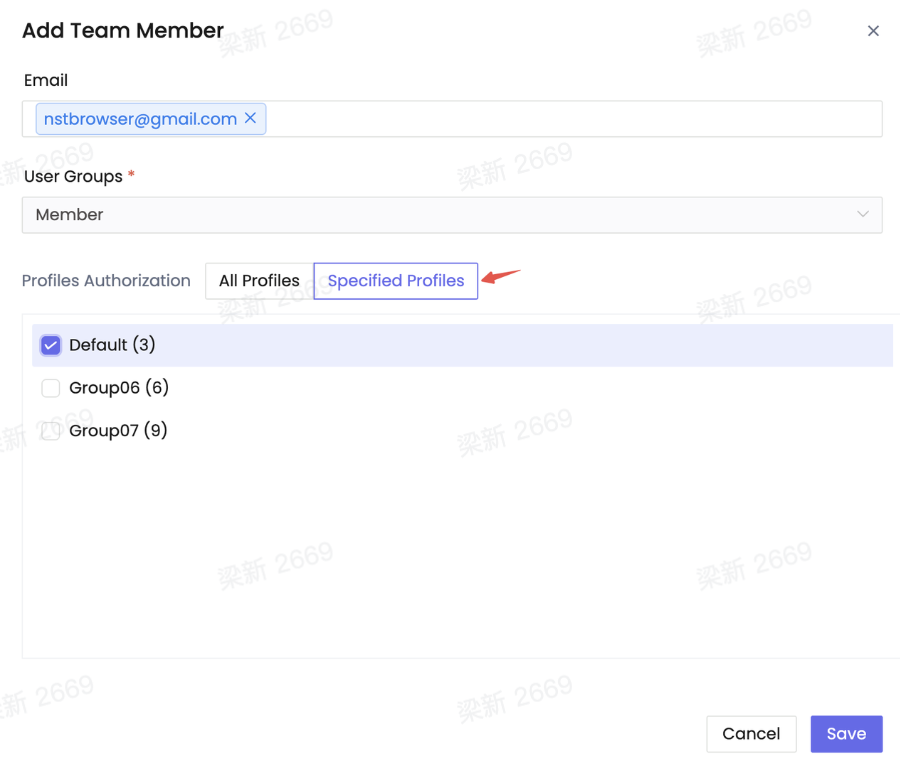
Step 3: Assign Team Members and Permissions
Next, assign the browser profile to the appropriate team members.
Using role-based permissions, administrators can control who can:
- Launch browser profiles
- Edit browser profiles
- Manage team members
- Configure security settings
Employees receive only the permissions required for their role, reducing unnecessary access to sensitive resources.
Step 4: Apply Browser Security Policies
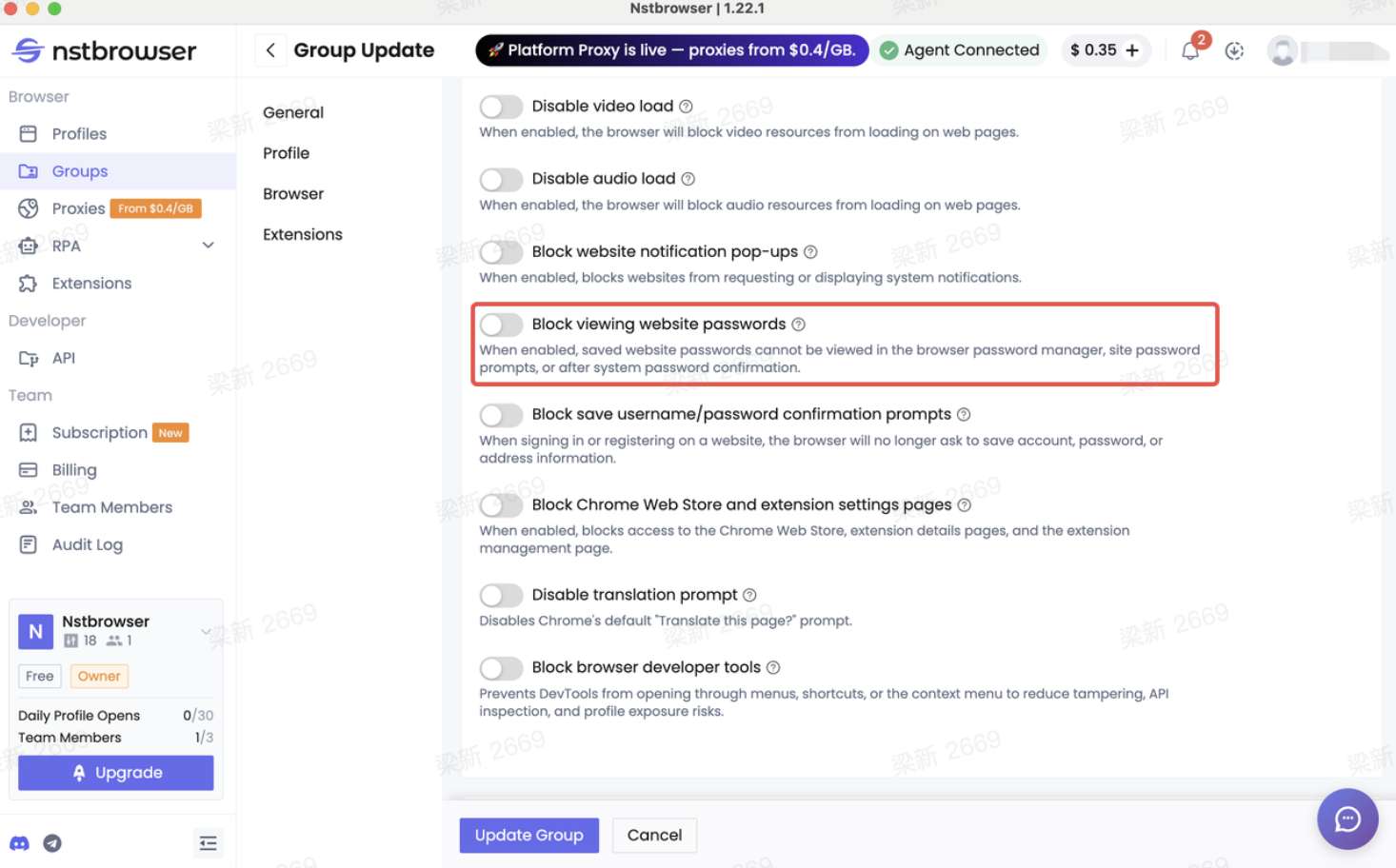
Once browser profiles have been assigned, configure browser security policies to protect shared credentials.
Depending on your organization's requirements, you can enable controls such as:
- Prevent viewing saved passwords
- Disable password saving
- Restrict website access
- Hide browser extensions
- Block Chrome Web Store
- Disable Developer Tools
- Restrict CDP automation
These policies help prevent employees from exposing credentials or modifying browser settings while allowing them to complete their daily work normally.
Step 5: Monitor Team Activity
Finally, use Audit Logs to monitor important administrative activities across your workspace.
Administrators can review events such as:
- Profile access
- Permission updates
- Proxy changes
- Browser configuration changes
- Other important operations
This provides a complete activity history that helps improve accountability and simplifies security investigations when needed.
Once these steps are complete, your team can securely access shared business accounts without exposing passwords or other sensitive browser credentials. Instead of relying on manual processes, browser security policies help enforce consistent protection across your entire organization.
Frequently Asked Questions
What are team credentials?
Team credentials include any information used to access shared business resources, such as usernames, passwords, browser profiles, cookies, login sessions, API tokens, and user permissions.
Why isn't a password manager enough?
Password managers protect passwords, but they don't control how browser profiles, cookies, extensions, or authenticated sessions are used after employees log in. Modern teams often need additional browser-level security controls.
What's the safest way to share business accounts?
Instead of sharing passwords directly, many organizations use authenticated browser profiles combined with role-based permissions and browser security policies. This allows employees to access shared accounts without exposing sensitive credentials.
Why should browser profiles be part of credential management?
Because browser profiles often contain authenticated sessions, cookies, browser fingerprints, and other assets that provide direct access to business accounts. Protecting these assets is just as important as protecting passwords.
Conclusion
Managing team credentials is no longer just about keeping passwords secret.
As organizations increasingly rely on shared browser profiles and collaborative business platforms, credentials now extend far beyond usernames and passwords. Browser sessions, cookies, permissions, browser configurations, and activity records all play an important role in protecting business accounts.
By combining secure account sharing, role-based permissions, browser security policies, website restrictions, and audit logging, organizations can give employees the access they need while significantly reducing unnecessary security risks.
The goal isn't to make collaboration more difficult—it's to create an environment where teams can work efficiently without compromising the security of the credentials they depend on every day.
More