multi-accountcaptcha-solverbrowser-fingerprint
How to Handle CAPTCHA When Managing Multiple Accounts with a Fingerprint Browser
Learn how to handle CAPTCHA across multiple browser Profiles in Nstbrowser, with account organization, Group policies, plugin states, and billing checks.
Oct 20, 2026Carlos Rivera
TL;DR
- Handle CAPTCHA in an antidetect browser within the Profile that owns the interrupted account session, then confirm the website’s own next step before moving on.
- A persistent Nstbrowser Profile retains its browser environment across launches. A one-account-to-one-Profile operating convention helps a team keep authorized account work organized.
- Group settings provide a shared CAPTCHA policy; a custom Profile configuration lets one environment use a different selection.
- Nstbrowser supports reCAPTCHA v2 and v3, including Enterprise variants, Text CAPTCHA, supported AWS CAPTCHA image challenges, and Cloudflare Turnstile widgets.
- Restart a browser environment after changing its Profile or Group CAPTCHA settings. The plugin’s read-only status labels help you see whether processing is enabled, running, or applied.
- A successful solver return is billable through the Profile’s owning team. Website acceptance and completion of your account task are separate checks.
Where CAPTCHA can interrupt multi-account work
CAPTCHA can interrupt an account workflow when a website asks for verification during sign-in, form submission, or another action in that session.
For someone managing several authorized business accounts, the immediate problem is practical: which Profile needs attention, what stage is it at, and can the original task continue? Changing to another browser window does not resolve the pending action in the first one.
A fingerprint browser such as Nstbrowser provides configurable browser environments for account work. A built-in CAPTCHA solver adds handling for supported challenges inside those environments. Website verification requirements still apply, and an independent Profile does not guarantee that a website will stop asking for CAPTCHA.
This guide is for people operating multiple Profiles through the browser interface. You can follow the setup and status checks without writing a browser-automation script.
Keep the account and its browser Profile together
Use a clear account-to-Profile mapping so that verification, browser state, and the intended account action remain in the same environment.
For ongoing account work, Nstbrowser’s Standard Profile is the persistent environment described in its Profile and pricing information. It retains cookies, sessions, fingerprint settings, and local data across launches. A Once Profile is temporary and clears its session data when it ends.
A simple team convention is to dedicate a persistent Profile to each account you are permitted to operate. This is an operating recommendation rather than a product requirement. Choose descriptive Profile names and keep your account mapping in an approved team record.
Before starting a task, confirm the Profile, the intended account, and the owning team. When a CAPTCHA appears, stay in that Profile to complete the website’s verification flow. Avoid moving authentication material or verification results between accounts to make another window continue.
An example with three authorized accounts
Consider a team maintaining three separate business accounts, each in its own persistent Profile. Two Profiles use the same Group CAPTCHA policy. The third needs a different selection because its permitted workflow encounters a different challenge type.
The team can keep the shared policy for the first two Profiles and use custom configuration for the third. If the third Profile is interrupted, its operator checks that Profile’s plugin and website response. The team does not need to change every other account’s settings to diagnose that interruption.
Enable a CAPTCHA policy for multiple Profiles
Use a Group when several Profiles should share the same enabled CAPTCHA types.
Select the correct Nstbrowser team and confirm that your role can edit the required settings. Check that CAPTCHA Solver is available under the subscription and that the team owning the Profiles has enough Credits.
The following menu labels are translated into English; use the corresponding entries in your Dashboard language.
- Open Groups and create or edit the relevant Group.
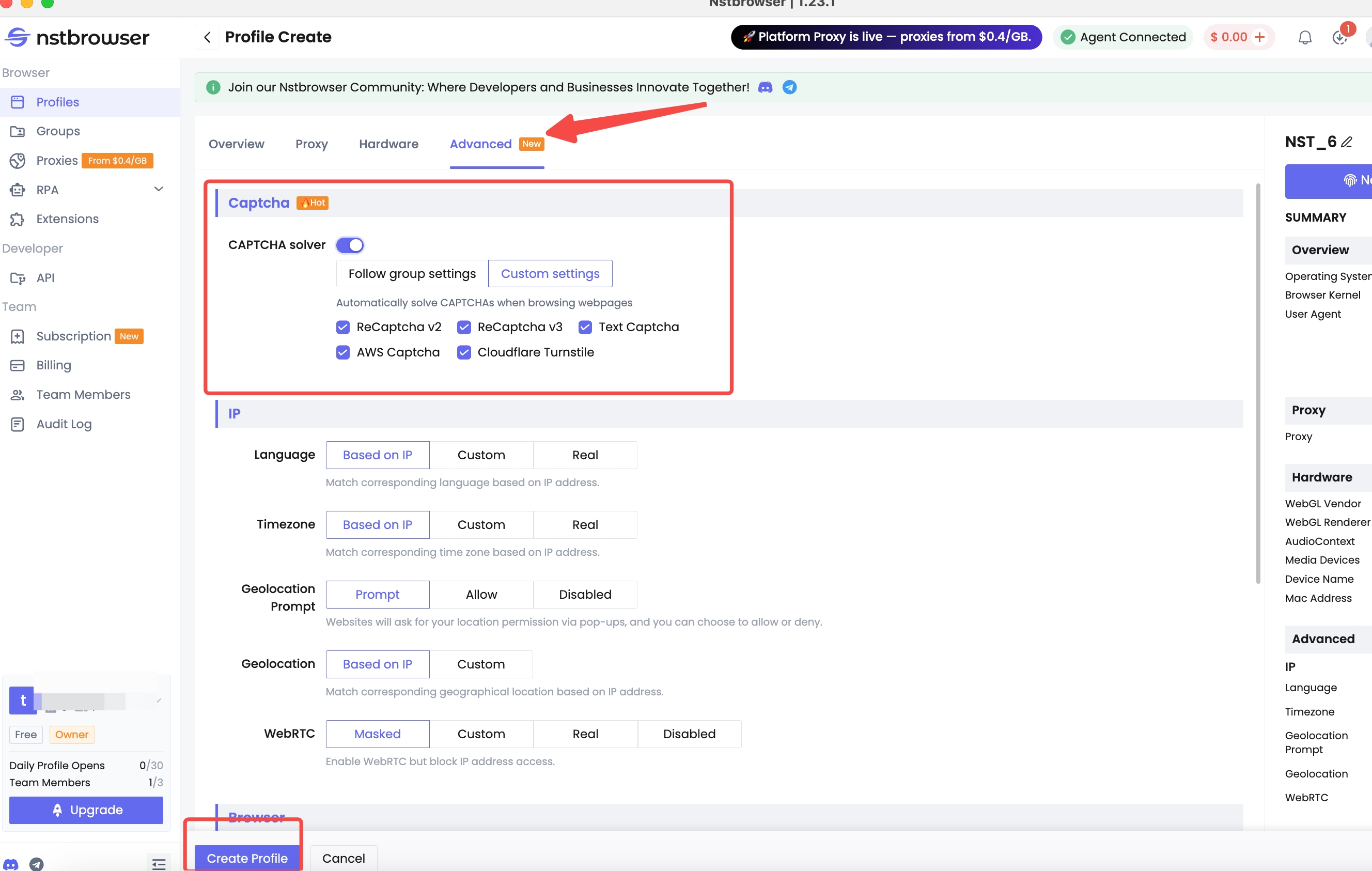
- Enable CAPTCHA Solving and choose the types needed by those account workflows.
- Save the Group policy.
- Open each intended Profile, assign that Group, and go to Advanced → CAPTCHA.
- Choose Follow Group settings, then save the Profile.
- Start or restart the affected browser environments with the Agent connected.
Group changes become available to Profiles following that Group’s settings after the environments are restarted. A Profile using custom settings continues to use its own policy.
Give one Profile its own CAPTCHA configuration
A custom Profile configuration lets one browser environment use a different CAPTCHA policy from its Group.
Open the target Profile, go to Advanced → CAPTCHA, enable processing, and choose Custom configuration. Select the required types and save using the create or update action. If the environment is running, stop it and launch it again.
Custom configuration takes precedence over Group inheritance in this Dashboard workflow. Check this setting when a shared policy seems to work in some account windows but not others.
If you are setting up a Profile for the first time, complete any requested browser-kernel download. Confirm that the Agent is connected before launching. A saved configuration is not evidence that a browser environment is running with that new configuration.
Know which CAPTCHA types can be processed
Nstbrowser’s documented support covers five configuration categories, with Enterprise variants included under the reCAPTCHA v2 and v3 selections.
| Configuration category | What to enable it for |
|---|---|
| reCAPTCHA v2 | Supported standard and Enterprise v2 challenges |
| reCAPTCHA v3 | Supported standard and Enterprise v3 verification |
| Text CAPTCHA | Supported image-to-text challenges |
| AWS CAPTCHA | Supported AWS CAPTCHA image challenges |
| Cloudflare Turnstile | Supported Turnstile widgets |
The current CAPTCHA Solver introduction explains that standard and Enterprise reCAPTCHA variants are detected automatically. Their rates differ even though they share a type selection.
Some verification happens without a visible image puzzle. Google describes reCAPTCHA v3 as score-based verification. The absence of a familiar checkbox does not mean the website has no verification step, and a solver does not determine the website’s acceptance policy.
Decide when the interrupted account task can continue
Use the plugin status to understand processing, then use the website’s response to decide whether the account task has actually advanced.
Open the Nstbrowser plugin from the browser’s extensions menu or its pinned toolbar icon. Its status and balance apply to the current Profile; check the window you are operating rather than relying on a status seen in another Profile.
| Plugin label | What it tells the operator | Next step |
|---|---|---|
Checking |
The plugin is checking its connection | Wait for the check to finish |
Allowed |
Processing is enabled and waiting for a supported challenge | Continue the intended website action |
Solving |
A challenge is being processed | Wait and avoid repeated refreshes or duplicate submissions |
Applied |
A result has been applied to this page | Complete the normal website action and inspect its result |
Disabled |
Processing is disabled for this Profile | Review the active configuration in the Dashboard, save, and restart |
The status labels are read-only. Adjust the switch, configuration source, and selected types through Profile or Group settings in the Dashboard.
After Applied, look for the result your task actually needs: the intended account screen, a saved-change confirmation, or the next permitted page. If the form remains incomplete, retain that task as pending. A result applied to the page is not the same as successful sign-in or a saved business action.
Leave a useful handover note
A short handover note can identify the Profile, the intended task, the plugin state, and the website’s visible response. Record whether any action still needs to be submitted or confirmed.
Use internal identifiers or approved account labels. Keep passwords, session cookies, and CAPTCHA results out of general task notes. This lets another authorized operator resume the same Profile without confusing an attempted action with a completed one.
Manage CAPTCHA costs across a team
CAPTCHA fees are charged to the team that owns each Profile when the solving service successfully returns a result.
Several Profiles can draw on the same team balance, so review the owning team before adding Credits. If another team has available funds, that does not replenish the balance used by the affected Profile.
Failed tasks that return no result are not charged. A returned result is billable even when the website later rejects it; a successful retry is also billable at the applicable type and plan rate. The Free plan has paid CAPTCHA usage rates, and subscription fees are separate.
Use Billing → Usage Analysis, choose the date range, and select CAPTCHA under overage usage to inspect counts and amounts. Review charge and top-up transactions under Billing → Credits. Use Add credits in the plugin or Billing → Current Period when the owning team needs funds.
Budget from actual returned-task usage rather than the number of accounts alone. A team’s Profile count does not determine how frequently its permitted account workflows will encounter supported challenges.
Resolve interruptions before expanding the policy
Verify one account workflow in one Profile before extending a shared CAPTCHA policy to other environments.
Check the account mapping, configuration source, selected type, restart, and team balance. Then observe both the plugin state and the website outcome. If processing remains unavailable or the challenge is outside the documented scope, use the website’s native verification or ask the account owner and support team for help.
This provides a repeatable way for ordinary multi-account operators to handle supported interruptions without turning every account task into a scripting project. The trial button opens Nstbrowser; solver usage is charged separately.
FAQ
Q: How do I handle CAPTCHA in an antidetect browser?
Enable supported CAPTCHA processing in the active Profile or its inherited Group policy, restart the environment, and watch the plugin in the interrupted account’s window. Continue only after checking the website’s own response to verification and the intended next action.
Q: Can I use CAPTCHA Solver without writing automation code?
Yes. The Dashboard workflow lets you configure Profile or Group settings and inspect processing through the built-in plugin. This setup does not require a Playwright or other automation script.
Q: Should every account have its own Profile?
A dedicated persistent Profile per authorized account is a useful operating convention for keeping account state and tasks organized. It is not a guarantee that the website will accept the account or stop requesting verification.
Q: Does one Group setting apply automatically to every Profile?
Only Profiles assigned to that Group and configured to follow Group settings inherit its policy. A custom Profile configuration takes precedence, and affected browser environments must be restarted after saved changes.
Q: Can I reuse a verification result in another account’s Profile?
Keep the verification workflow in the Profile and page that encountered it. Reusing authentication or verification material across account environments is outside the intended setup described here and does not establish that another website session will accept it.
Q: Does Applied mean that the login or account action finished?
No. It means the solver result was applied to the page. You still need the website’s own confirmation that the login, form submission, or other intended action completed.
Q: Which team pays when I use several Profiles?
Each Profile uses the Credits balance of its owning team. Check the team assignment when a request fails for insufficient funds, even if a different team has Credits available.
Q: Can a fingerprint browser with CAPTCHA Solver guarantee that accounts will not be restricted?
No. Profile management and supported CAPTCHA processing do not determine a website’s account rules, permissions, or enforcement decisions. Operate only accounts and workflows that you are authorized to manage.
More